Images
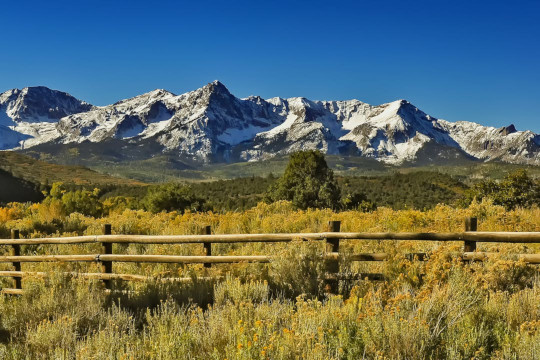
To add an image, use an exclamation mark (!), followed by the alt text in brackets, and the path or URL to the image asset in parentheses. You can optionally add a title in quotation marks after the path or URL.
Light and dark mode
You can show different images for light and dark color schemes by using the only-light or only-dark classes.
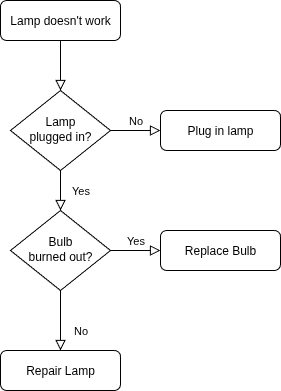{ .only-light }
{ .only-dark }
If you don't want to have two versions of the image, you can instead use the invert class, which inverts
the colors of the image only in dark mode. It doesn't look great for some images, but it's good enough most of the time.
{ .invert }
Image alignment
If the screen is wide enough, you can align images to the left or right by wrapping the content
in a ::: div columns block.

::: div columns
{ .left }
Aliqua id elit sint ullamco cillum consequat.
Proident ad elit laboris consectetur duis sint
proident voluptate incididunt nulla excepteur
culpa tempor.
:::
To center an image, just add the center class.
{ .center }
Figures
The Markdown syntax doesn't provide native support for image captions, but you can use a ::: figure block:
::: figure | Image caption
:::
Image links
To add a link to an image, enclose the Markdown for the image in brackets, and then add the link in parentheses.
[](https://example.com/)
Forcing image size
You can force an image to have a specific width and/or height by adding attributes. Set just one of them to resize the image while preserving its aspect ratio, or set both to distort it.
{ width=100 }
{ width=300 height=50 }
Lazy-loading images
Modern browsers provide native support for lazy-loading images through the loading=lazy attribute, which falls back to normal eager-loading in browsers without support.
{ loading=lazy }
