Configuration
WriteADoc has a unique approach to configuration: documentation is managed by a Python Docs class that you import, instantiate with your data, and then render by calling a method. All of this happens inside your docs.py file.
from writeadoc import Docs

pages = [
    "welcome.md",
    # ...
]

docs = Docs(
    __file__,
    pages=pages,
    site={
        "name": "Project Name",
        "description": "Description of your project",
        "base_url": "https://project.example.com",
        "lang": "en",
        "version": "1.0",
        "source_code": "https://github.com/yourusername/yourproject/",
    },
)

if __name__ == "__main__":
    docs.cli()
The main arguments are the list of pages and the site metadata.
Adding pages
Every page you want to include in your documentation must be listed in the pages argument.
docs = Docs(
  __file__,
  pages=[ ... ],
  site={ ... }
)
Warning
Include every page except your index.md file.
A page is specified as the path of a Markdown file, relative to the content folder.
docs = Docs(__file__, pages=[
  "overview/intro.md",
  "markdown/lists/tasks.md",
])

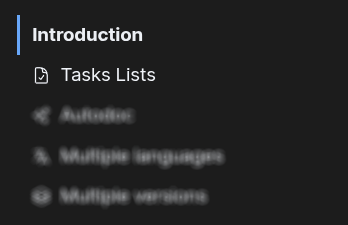
The title shown will be extracted from the page metadata title.
If there is an icon in the page metadata, it will also be shown.
It should be a path, relative to the assets folder, of an image or SVG file.
The folder structure of these files doesn't matter; they will all appear at the same level. If you want to display them inside a "folder," put them inside a section.
Adding sections
You can group pages into sections, which can also contain subsections.
docs = Docs(__file__, pages=[
  {
    "title": "Lists",
    "icon": "icons/code.svg",  # optional
    "pages": [
      "markdown/lists/unordered.md",
      "markdown/lists/ordered.md",
      "markdown/lists/tasks.md",
      # ...
    ],
  },
  # ...
])

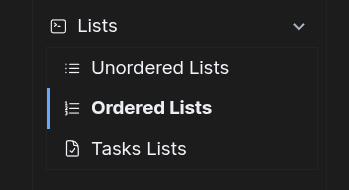
The icon is optional. If included, it should be a path, relative to the assets folder, of an image or SVG file.
The pages list of the section can contain page paths or other sections.
Clicking on the section title will fold or unfold its page tree.
Section/page
A section can also be a page. To do this, add a path attribute with the path of the Markdown
file, relative to the content folder.
You can still define a title, but it is optional, because it will be extracted from the page metadata.
If there is an icon in the page metadata—a path, relative to the assets folder, of an image or SVG file—it will also be shown.
docs = Docs(__file__, pages=[
  {
    "path": "markdown/lists.md",
    "pages": [
      "markdown/lists/unordered.md",
      "markdown/lists/ordered.md",
      "markdown/lists/tasks.md",
      # ...
    ],
  },
  # ...
])

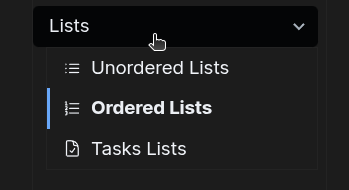
Clicking on the section title will show its page.
Automatically adding all pages from a folder
If instead of a list of pages, the pages attribute is a folder path inside the contents dir, all the markdown files in that folder will be added as pages, in order.
docs = Docs(__file__, pages=[
  {
    "title": "Components",
    "pages": "components/"
  },
  # ...
])
Sections that start closed
A section is by default "open," meaning it shows all of its pages and subsections. However, sometimes a section with many pages can create too much visual noise. You can specify that a section should be rendered "closed" by default by using the "closed": True property:
docs = Docs(__file__, pages=[
  {
    "title": "Commands",
    "closed": True,
    "pages": [
      "commands/one.md",
      "commands/two.md",
      "commands/three.md",
      # ...
      "commands/one-hundred.md",
    ],
  },
  # ...
])
The section will be rendered closed except when viewing a page inside that section (even if it's inside a subsection).
Site metadata
Site metadata contains the essential global information: name, base_url, version, and lang, as well as any other custom metadata you might want to use in your views.
For example, description and source_code are two pieces of information that are used in several places in the default theme.
docs = Docs(
  __file__,
  pages=[ ... ],
  site={
      "name": "Project Name",                     # required
      "base_url": "https://project.example.com",  # required
      "version": "1.0",
      "lang": "en",
      "description": "Description of your project",
      "source_code": "https://github.com/yourusername/yourproject/",
  },
)
"version" is only required if you use multiple versions.
"lang" is only required if your docs are translated into multiple languages.
The Home page
The home page is special for several reasons:
- You don't include this file in your
pageslist. - This file must be named
index.mdand be directly inside thecontentfolder, not in a subfolder. - Unlike other pages, which use the
views/page.jinjaview, the home page uses theviews/index.jinjaview. - You don't even need an
index.mdfile! If you delete it, theviews/index.jinjaview will be rendered as-is.